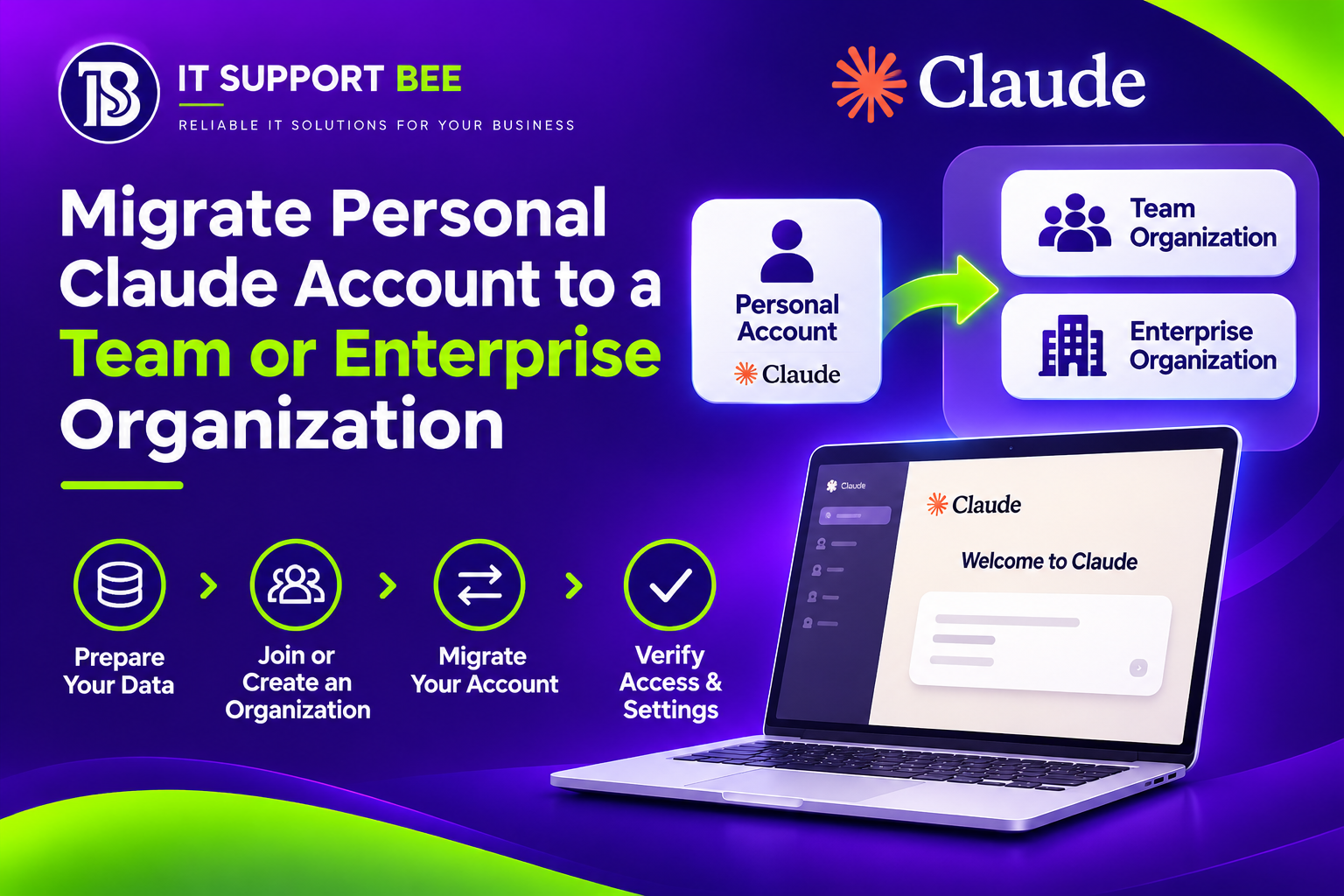
Your team started on personal Claude Pro and Max accounts. Now you want one Claude Team or Enterprise organization with central billing, admin control and shared policy. The catch: the built-in migration moves a lot, but not everything. Custom skills, Docs, Sheets, connectors, scheduled tasks and Claude Code cloud sessions do not come along for the ride.
Miss that, and someone loses a week of work on migration day. This guide covers the order of operations I use for migrations: audit first, configure the org second, move third, rebuild fourth, verify last.
Why This Migration Needs a Plan
A personal account is a private silo. A Team or Enterprise org is a managed workspace with its own policies. Those policies decide what is allowed to land inside it.
Three things make this risky for a business:
- One-way door. After you confirm “Move now,” it cannot be reversed. Content moved into an organization cannot be moved back to a personal account.
- Silent gaps. Some items simply do not move. Nobody gets a warning per item.
- Org policy can block your data. If the organization has memory turned off, memory does not migrate. Custom connectors may be blocked by organization policy.
For accounting firms, agencies and other businesses handling client data, the rule is simple: decide what happens to every asset before anyone clicks anything.
Core Concepts in Plain English
Personal account vs. organization account
Your personal account holds your own chats, projects and subscription. The organization account sits inside the company workspace. You sign in with the same email, but it is a separate account with separate rules.
“Bring what you can” vs. “Start fresh”
When you close your personal account inside the org, you get two choices:
- Bring what you can moves eligible content into the organization.
- Start fresh moves nothing and cannot be undone.
Team vs. Enterprise behavior
- Team plans require a minimum of two members, and members can migrate their own personal accounts voluntarily.
- Team can verify a domain and block new personal accounts from being created, but cannot claim or migrate existing accounts on your behalf.
- Enterprise admins can claim accounts on the domain and run a migration window. Enterprise users start the migration from settings and are not prompted on join.
- Organizations with HIPAA readiness or customer-managed encryption keys cannot receive data from a personal account.
What Moves and What Does Not
This is the part to print and tape to the wall.
What moves
- Chats and the artifacts inside them
- Artifacts in the Artifacts tab (as private copies under new links)
- Projects, project instructions and files, including Cowork-related ones (projects on the new beta version excluded)
- Uploaded files and attachments
- Project sync configurations (which Drive folders and repositories a project syncs)
- Memory from chats and projects, unless the org has memory turned off
- Claude Code memory and personal settings, unless the org already has its own values
- Your custom instructions for Claude
What does not move
- Custom skills. Download them first.
- Claude Docs and Claude Sheets. Export them first.
- Data artifacts, other artifacts that store data, and some other artifact types
- App connections. They are switched off and must be reconnected in the org account.
- Custom connectors. They must be re-added and may be blocked by org policy.
- Cloud Cowork tasks, including scheduled tasks, plus local-only Cowork tasks and connected folders
- Claude Code cloud sessions (web, scheduled and mobile)
- Public share links and published legacy artifacts. These stop working permanently.
- Pending share invites
- Personal Finance, which is not available on Team or Enterprise (unlink banks first)
- Chats that are too large (your other chats still move)
The Zero-Surprise Migration Plan
Step 1: Audit every person before anything moves
Make one audit sheet per person. Do not trust memory. Open each person’s account and list what is actually there.
PERSON: ____________________   PLAN: Pro / Max   BOUGHT VIA: Direct / Google Play / Apple
[ ] Custom skills (names, purpose, who else uses them)
[ ] Claude Docs and Sheets (titles)
[ ] Data artifacts / artifacts that store data
[ ] Published artifacts and public share links in use
[ ] Connected apps (Microsoft 365, Xero, Slack, other)
[ ] Custom connectors (URLs)
[ ] Scheduled tasks and Cowork tasks
[ ] Claude Code cloud sessions (repo, branch, uncommitted work)
[ ] Projects on the new beta version
[ ] Personal Finance linked banks
[ ] API credits (Max / Ultra)
This list becomes your rebuild checklist later.
Step 2: Configure the organization first
Set the Team up before anyone migrates, so nothing lands in a locked room. Work in the admin console (Organization settings).
- Seats. Add the people migrating. Plans start at two members.
- Domain. Verify your company domain by adding the TXT record Claude generates at your DNS host. Then block new personal accounts from being created on that domain if that fits your policy.
- Memory. Turn the organization memory setting on before anyone migrates. If it is off, memory does not move.
- Code execution. Enable code execution and file creation. Skills need it to run.
- Connectors. An Owner or Primary Owner adds each connector under Organization settings > Connectors before members can use it. Pre-approve what the business needs, for example Microsoft 365, Xero and Slack.
- Skills policy. Decide whether members may create and share skills, and whether any should be published as organization skills.
Do this on a quiet day. It takes far less time than cleaning up after a bad cutover.
Step 3: Back up before the move
Each person does this on their own login. IT never needs a password. Run it over a screen share.
- Export chats and download the export file.
- Export every Doc and Sheet.
- Download every custom skill as a zip.
- Save published artifacts and note where public links are used.
- Download files created by code execution and any cloud Cowork files.
- Write down all connected apps.
- Turn off sharing where needed.
- For Claude Code cloud sessions, see the section below.
Step 4: Run the migration
- Sign in to the organization account on the web or Claude Desktop. The mobile apps cannot start a migration.
- Go to Settings > Account > “Close your personal account.” Team users may get this prompt when accepting an invite.
- Choose Bring what you can.
- Confirm with Move now.
- You are signed out everywhere. Sign in again with the same email.
Expect delay. The chat list can take time to populate, and search may need a sign-out and sign-in to surface everything.
Step 5: Rebuild what did not move
Work through the audit sheet line by line.
- Custom skills: Re-upload the zips. Personal skills go back in per user. Shared ones are better published as organization skills.
- Connectors: Reconnect each app in the org account. Re-add custom connectors, and check whether org policy blocks them.
- Docs and Sheets: Re-import the exported files.
- Data artifacts: Rebuild from the saved source or recreate them.
- Scheduled tasks: Recreate them in the org. They do not carry over.
- Public links: Republish where needed and tell anyone who held an old link.
Step 6: Verify, then hand over
Do not call it done until each person confirms they can see their chats, projects and artifacts. Then deliver a one-page summary:
- What moved
- What was rebuilt
- What could not be recovered
That last line matters. Clients trust you more when you say what was lost.
Custom Skills: The Most Common Casualty
Skills are the first thing people forget, because they work quietly in the background. After the move, a workflow that used to run in one click just stops.
Best practice:
- Download every skill before migration, and keep the zips in a shared backup folder.
- Confirm code execution is enabled in the org, or the skills will not run.
- Review each skill before re-uploading. Skills can contain executable code, so treat them like any script that touches client data.
- Publish team-wide skills at the organization level so they survive staff changes.
Claude Code Cloud Sessions: Plan to Rebuild, Not Restore
Cloud sessions do not migrate. That includes web, scheduled and mobile sessions. Treat the session as disposable and the repository as the source of truth.
Before the move:
- Commit and push all work from each session to its Git branch.
- Save anything worth keeping, such as decisions, conventions and open tasks, into files in the repo (a
CLAUDE.mdis the usual place). - Note which sessions were scheduled.
After the move:
- Open new cloud sessions against the same repositories in the org account.
- Recreate scheduled sessions.
- Check that Claude Code memory and personal settings carried over. They move unless the org already has its own values.
Subscriptions, Refunds and Billing Traps
What happens to the old Pro or Max plan depends on where it was bought.
- Bought directly from Anthropic: Cancelled automatically, with a prorated refund, typically issued about 24 hours after cancellation. Bank posting time varies.
- Google Play: Google is asked to cancel and refund unused time, usually in one to two weeks. Check Google Play and cancel there if the plan is still active.
- Apple App Store: Not cancelled automatically. You must cancel in your Apple ID settings, or Apple keeps charging you.
- API credits (Max or Ultra): Moving to Team ends the credit link, so new credits stop. A Team Owner or Primary Owner can claim team credits after the Team plan has been active for seven days.
- Credits bought in the mobile apps are not refunded.
Common Mistakes to Avoid
- Clicking “Move now” before exporting Docs and Sheets
- Leaving org memory off, then wondering where memory went
- Forgetting that connectors are switched off after the move
- Letting a cloud Claude Code session hold the only copy of unpushed work
- Choosing “Start fresh” by accident
- Ignoring Apple billing after the move
- Skipping the post-move check with each person
Conclusion
A Claude Team migration is not hard. It is unforgiving. The built-in tool does the heavy lifting for chats, projects and memory, but the work that makes the move invisible to your staff is everything around it: the audit, the org setup, the backups and the rebuild. Do it in order and nobody loses a skill, a spreadsheet or a scheduled job.
Book a Strategy Call
Want this handled without disrupting your team? IT Support Bee plans the audit, configures the organization, runs the live migration session over screen share and hands you a clear summary. No passwords shared. Everything is done in the admin console or on screen share, with your permission.
Email hello@itsupportbee.com or visit itsupportbee.com/contact to book a call about your Microsoft 365 or Google Workspace setup.

Mushfiqur Rahman
Microsoft 365 & Google Workspace Email Consultant
I help small businesses migrate, secure, and fix their business email. I specialize in Microsoft 365 and Google Workspace migrations, SPF, DKIM and DMARC, and remote admin support through IT Support Bee.