
Migrate from GoDaddy to Office 365
If you bought Office 365 through GoDaddy back when you first registered your domain, there’s a decent chance you’ve since outgrown it and never quite figured out how to leave. That’s normal. GoDaddy’s version of Office 365 is convenient on day one and frustrating by year two, mostly because you don’t actually own your own tenant, GoDaddy does, and you’re just borrowing access to it.
This guide walks through the real method to migrate from GoDaddy to Office 365 properly, meaning a Microsoft 365 tenant that belongs entirely to you, with no reseller sitting between you and Microsoft. It’s not overly complicated once you understand the shape of it, but it does need to be done in the right order.
Why This Isn’t a “5-Minute Fix”
A lot of GoDaddy-to-Office-365 questions online get answered with some version of “just export your mail and reimport it,” which misses the actual problem. Your domain itself is tied up. It’s marked as “federated” inside Microsoft’s system, which is a fancy way of saying GoDaddy is the one deciding how your users log in, not you.
Until that federation is broken, you can’t fully move to a standalone Microsoft 365 subscription. Exporting mailboxes without dealing with this first is how people end up with broken logins, missing admin access, or email that suddenly stops delivering.
So the “best method” here isn’t a shortcut. It’s just doing the steps in an order that doesn’t break anything.
Step One: Find Your Real Admin Account
Here’s something that trips people up immediately. GoDaddy gives you an admin login, but that login usually just bounces you into GoDaddy’s own dashboard rather than the actual Microsoft 365 admin center.
Somewhere underneath that, there’s a genuine admin@yourcompany.onmicrosoft.com account sitting inside Microsoft’s system. That’s the one you actually need. You’ll find it inside Entra ID (what used to be called Azure AD), reset its password there, and then log into office.com directly, ideally in a private/incognito browser window so nothing cached interferes.
This account becomes your real starting point for everything else.
Step Two: Break the Federation, Not the Domain
This is the technical heart of the migration, and it’s done with PowerShell rather than clicking around a dashboard.
You’ll connect to Microsoft Graph, check how your domain is currently set up, and switch its authentication type from “Federated” to “Managed.” Once that switch happens, your domain answers directly to Microsoft, not to GoDaddy’s identity systems anymore.
Write-Host "Checking for MSGraph module..."

$Module = Get-Module -Name "Microsoft.Graph.Identity.DirectoryManagement" -ListAvailable

if ($Module -eq $null) {
Write-Host "MSGraph module not found, installing MSGraph"
Install-Module -Name Microsoft.Graph.Identity.DirectoryManagement
}

Connect-MgGraph -Scopes "Directory.Read.All","Domain.Read.All","Domain.ReadWrite.All","Directory.AccessAsUser.All"
# Log in with the admin account from Step One

Get-MgDomain
# Confirm it currently shows "Federated"

Update-MgDomain -DomainId "yourcompany.com" -Authentication Managed
# Run Get-MgDomain again to confirm it now shows "Managed"
A word of caution here: if your tenant has more than one domain attached, all of them need this same treatment, not just your primary one. Missing even a secondary domain can stall the whole process or leave part of your organization still tangled up with GoDaddy.
The moment this switch flips, federated login stops working. Which brings us to the next problem you need to already have a plan for.
Step Three: Everyone Needs a New Password, Today
Once a domain goes from Federated to Managed, the old sign-in method simply doesn’t apply anymore. Every single user needs a new password, and there’s no way around this part.
For a small team, this might mean resetting passwords one by one through the admin center. For anything larger than a handful of people, it’s worth using a script that pulls a list of usernames from a CSV file and resets them in bulk, it saves a genuinely painful amount of time.
Give people a heads-up before you do this. A short internal message along the lines of “you’ll need to sign back into Outlook this afternoon with a new password” avoids a flood of confused support tickets.
Step Four: Decide Where Your Licenses Come From Next
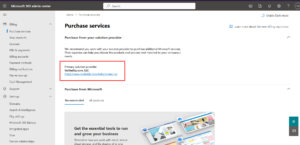
With the domain freed up, you now have options that didn’t exist before. You can buy Microsoft 365 licenses directly from Microsoft, or bring on a Cloud Solution Provider (CSP) who manages licensing and support on your behalf, often with better pricing and faster response times than GoDaddy ever offered.
If you’re keeping the same plan and the same number of seats, this step is mostly a matter of assigning new licenses and removing the old GoDaddy-issued ones once they’ve run their course. If you’re changing tiers entirely, budget a bit more time to plan out who needs what.
Step Five: Don’t Forget About Bundled Email Security
Here’s a detail that catches people off guard. Some GoDaddy Office 365 plans quietly bundle in Proofpoint email security, which routes your incoming mail through Proofpoint’s servers via an MX record rather than straight to Microsoft.
If that applies to your setup and you cancel your GoDaddy plan without updating that MX record first, your incoming email just stops. Not degraded, not delayed, stopped. Check your GoDaddy billing details to see if this applies to you before you get anywhere near cancellation.
Step Six: Kick GoDaddy Out of Your Admin Settings
Before you cancel anything, go into your tenant’s partner relationships settings and remove GoDaddy’s delegated admin access. While you’re in there, it’s also worth checking Enterprise Applications inside Entra ID for a lingering GoDaddy-connected app that could retain permissions even after delegated admin is removed.
This step matters more than it sounds like it should. If GoDaddy still has admin rights when you cancel your subscription with them, their automated systems can delete user accounts and strip your primary domain right out from under you. It’s usually recoverable, but it’s a mess nobody needs to deal with.
Step Seven: Now You Can Actually Cancel with GoDaddy
Once delegated access is gone and you’ve confirmed there’s nothing left tying your tenant to GoDaddy’s control, cancelling the subscription through their billing portal is safe. It’ll simply run out at the end of the current billing term, same as any other subscription.
What People Get Wrong, in Order of How Often It Happens
- Cancelling GoDaddy before pulling their admin access, which risks account deletion.
- Converting the primary domain but forgetting a secondary one is still federated.
- Not knowing they had Proofpoint bundled in, and losing incoming mail for hours.
- Assuming old GoDaddy licenses vanish instantly instead of running out naturally.
- Skipping the “warn your team” step and getting flooded with password reset tickets the same afternoon.
How Much Does This Actually Cost?
Technically, defederation itself doesn’t cost anything from Microsoft’s side, it’s a settings change, not a data transfer. Where the real cost shows up is in time: either yours, if you’re comfortable running PowerShell and coordinating password resets, or an IT partner’s, if you’d rather someone experienced handle the sequencing.
If you’re switching to a new license tier or CSP, factor in the new subscription cost, and expect a short overlap period where your old GoDaddy licenses haven’t fully expired yet while your new ones are already active. That overlap is normal and temporary.
After the Migration: A Few Things Worth Checking
- Run
Get-MgDomainone more time and confirm every domain shows “Managed,” not just the main one. - Look through your Exchange mail flow rules for anything still pointing at Proofpoint or another leftover security provider.
- Turn on Conditional Access and multi-factor authentication, these are usually locked down or unavailable while GoDaddy still controls your tenant.
- Give it 30 days, then check back in on mail flow, licensing, and admin access to make sure nothing quietly drifted.

When It’s Worth Getting Help
If your organization has more than a few mailboxes, if you’re not sure whether Proofpoint is part of your plan, or if you work somewhere that can’t afford even a short mail outage (law firms, healthcare, finance), this is a reasonable one to hand off to someone who’s done it before. The steps themselves aren’t secret, but the order they happen in is where things go wrong.
Why Businesses Work With IT Support Bee for This
- MS-102 certified Microsoft 365 administration, with direct experience running this exact PowerShell-based process.
- Remote support for US businesses, so there’s no need to wait around for an on-site visit.
- A sequence that’s built around keeping your email running the entire time, including the Proofpoint MX detail most guides skip.
- Support that continues after the migration, setting up Conditional Access, MFA, and the security tools GoDaddy never gave you access to.
Thinking About Making the Move?
If you’re ready to migrate from GoDaddy to Office 365 properly, meaning a tenant that’s actually yours, our team can handle the whole thing: domain conversion, password resets, licensing, and the mail security cleanup most people forget about.
Talk to Our Microsoft 365 Migration Team →
Frequently Asked Questions
What’s the best method to migrate from GoDaddy to Office 365? The reliable method is defederating your domain first, converting it from “Federated” to “Managed” status via Microsoft Graph PowerShell, before touching licensing or cancelling anything with GoDaddy. Skipping this order is where most problems come from.
Will I lose email during the migration? Not if it’s sequenced correctly. The main disruption is that every user needs to reset their password once the domain switches to managed status. Mail data itself, mailboxes, calendars, contacts, stays intact throughout.
Do I need to hire a Cloud Solution Provider, or can I buy Office 365 directly? Either works. Once your domain is defederated, you can purchase Microsoft 365 licenses directly through Microsoft or work with a CSP partner for ongoing management and support.
What happens if I cancel GoDaddy before removing their admin access? This is the single riskiest mistake people make. GoDaddy’s systems can automatically delete user accounts and remove your primary domain if their delegated admin role is still active at cancellation. Always remove their access first.
How do I know if my GoDaddy plan includes bundled email security? Check your GoDaddy billing or subscription details for Proofpoint. If it’s there, you’ll need to update your MX records before or immediately after cancelling, or incoming mail will stop working.