If you’re partway through a DreamHost to Google Workspace migration and your Gmail folders show up empty, or with the right folder names but few or none of the actual messages inside, you’re dealing with one of the most common and most misleading failures in IMAP-based email migration. The tool reports success. The folder structure looks correct. But the emails themselves never actually copied over.
This is fixable, and it’s more common than most guides let on. Here’s why it happens and the safest way to recover from it without losing anything.
Quick answer:
- Folders showing up without messages is almost always a partial IMAP sync, not a Gmail problem or a DreamHost problem on their own.
- Automated migration tools frequently report “completed” even when messages were silently skipped.
- The safest recovery method is a manual IMAP-to-IMAP migration using a mail client like Thunderbird, which lets you verify message counts folder by folder.
- Always copy, never move, from the source account until you’ve confirmed every message landed correctly on the destination side.
Why DreamHost to Google Workspace Migrations Fail Silently
During an IMAP-based migration, it’s common to see folders appear correctly in Gmail while the messages inside them are missing, partially transferred, or inconsistent between folders. The migration “finishes” without ever telling you anything went wrong.
1. Partial IMAP Sync
Google’s migration tool connects to DreamHost over IMAP and pulls folder structure and message data separately. In some cases, it successfully reads and recreates the folder hierarchy but fails partway through fetching the actual message content, especially in folders with a large number of emails or unusual message formatting. The result is a folder that exists but is empty or thinly populated.
2. Authentication and Permission Limits
A login that works doesn’t guarantee full access. Some DreamHost account configurations apply access restrictions that allow a migration tool to authenticate and browse the mailbox structure, while still blocking full retrieval of message content, particularly across every folder.
3. DreamHost’s IMAP Configuration
DreamHost’s IMAP implementation has its own quirks around how folders are flagged and indexed. In some cases, this can cause a migration tool to misread a folder’s contents or stop pulling messages from it earlier than expected, without raising any visible error.
4. Limitations in Google’s Built-In Migration Tool
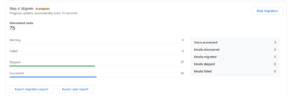
Google’s migration tool is genuinely useful for straightforward moves, but it isn’t built to catch every edge case. It can skip individual messages without logging a clear error, and its “completed” status doesn’t necessarily mean every message was actually transferred, only that the process ran to the end.
5. Data Transfer limit by Dreamhost
When client hired me I have audited and found that they already tried but only folder migrated, data did not. So I have tried to find out exact root cause behind this and fortunately found the data transfer caped by dreamhost.
The Safest Method: Manual IMAP-to-IMAP Migration
When the automated tool leaves gaps, the most reliable fix is a manual IMAP-to-IMAP migration using a desktop mail client such as Thunderbird. It’s slower than an automated tool, but it gives you full visibility into what’s actually being copied, folder by folder and, if needed, message by message.
This method gives you real-time verification and effectively zero risk of silent data loss, since you can see message counts on both sides as you go. The trade-off is time: it works well for individual mailboxes or moderate amounts of data, but it becomes genuinely tedious and slow for very large mailboxes, so plan accordingly if you’re migrating years of accumulated email.
Step 1: Connect the DreamHost Account (Source)
- IMAP Server:
imap.dreamhost.com - Port:
993 - SSL: Enabled
Step 2: Connect the Google Workspace Account (Destination)
- IMAP Server:
imap.gmail.com - Port:
993 - SSL: Enabled
Step 3: Migrate Folder by Folder
Open both accounts side by side in Thunderbird, one in the top pane and one in the bottom. Select the messages in a DreamHost folder and copy them into the matching Gmail folder. Work through this systematically, folder by folder, rather than attempting to move everything in one pass, this is what makes it possible to catch a partial transfer before it becomes a bigger problem.
Step 4: Verify Before Moving On
For each folder, check the message count on both sides, confirm the folder structure matches, and spot-check that attachments opened correctly on a handful of messages. Don’t move to the next folder until the current one checks out.
Important Tips to Avoid Losing Data
- Always copy, never move. Copying leaves the original messages intact on DreamHost until you’ve fully verified the migration, so a partial failure never means permanent data loss.
- Start with a small batch first. Migrate one small folder completely before starting on your largest or most important one, so you catch configuration issues early rather than after hours of transfer time.
- Keep the connection stable. A large migration interrupted mid-transfer is one of the more common causes of the exact “folder without messages” problem this guide is addressing. Use a reliable connection and avoid running the migration on a laptop that might sleep or lose Wi-Fi.
- Check spam and hidden folders too. Some messages live outside the main Inbox and get overlooked if you only check the folders you normally use day to day.
How to Confirm Zero Data Loss
For anything business-critical, especially client mailboxes, don’t rely on the migration tool’s own success message. Instead:
- Compare message counts between source and destination for every folder, not just the largest ones.
- Keep temporary read access to the DreamHost account for a defined period after migration, in case something needs to be re-checked later.
- Document the process with screenshots or logs of folder counts before and after, so there’s a clear record if a discrepancy is discovered weeks later.
A note worth repeating: most migration tools don’t fail loudly. They report “completed” even when messages were quietly skipped. Manual verification isn’t an optional extra step here, it’s the actual safeguard.

When to Bring in Professional Help
A manual, folder-by-folder migration works well for smaller mailboxes, but it gets genuinely difficult to manage carefully once you’re dealing with multiple mailboxes, years of archived mail, or client-facing accounts where any data loss has real consequences. At that point, the time cost and risk of a missed folder usually outweigh doing it yourself.
This is also worth handing off if you’re migrating multiple users at once, since verifying message counts across dozens of mailboxes manually becomes impractical without a more structured process.
Why Businesses Work With IT Support Bee for This
We handle DreamHost to Google Workspace migrations, along with migrations from cPanel, Outlook, and Zoho, with a process built specifically to catch partial syncs before they become missing data. Our services include:
- IT consulting
- Google Workspace administration
- Email migration and post-migration verification (DreamHost, cPanel, Outlook, Zoho)
- DNS configuration (SPF, DKIM, DMARC)
- Email deliverability optimization
- GoDaddy defederation
- Managed IT services
- Cloud infrastructure
- Microsoft 365 administration
- Desktop support
Get Expert Help With Your Migration
Email migration isn’t just a technical task, it’s business-critical. A missed folder or a silently skipped batch of messages can cost client trust, important data, and reputation, especially when it’s discovered weeks after the fact rather than during the migration itself.
If you want a fast, secure migration with zero downtime and no risk of silent data loss, our team can handle the entire process and verify it properly before calling it done.
Get Expert Help From IT Support Bee →
Frequently Asked Questions
Why do my Gmail folders show up empty after a DreamHost migration?
This is almost always a partial IMAP sync, where the migration tool successfully recreates the folder structure but fails to fully transfer the messages inside, often without showing any error.
Is DreamHost’s migration tool or Google’s migration tool at fault?
It’s usually a combination of DreamHost’s specific IMAP configuration and limitations in Google’s built-in migration tool, which can skip messages silently and report “completed” even when some emails weren’t transferred.
What’s the safest way to fix a failed email migration without losing data?
A manual IMAP-to-IMAP migration using a mail client like Thunderbird, copying (not moving) messages folder by folder and verifying counts on both sides before proceeding.
Should I delete emails from DreamHost once they appear in Gmail?
Not immediately. Keep the original DreamHost account and messages intact until you’ve fully verified every folder matches on the Gmail side, since copying rather than moving protects you from exactly this kind of silent data loss.
How do I know if my migration actually succeeded, since the tool said “completed”?
Don’t rely on the tool’s status message alone. Manually compare message counts per folder between DreamHost and Google Workspace, and check spam and hidden folders as well, since a “completed” status doesn’t guarantee every message transferred.