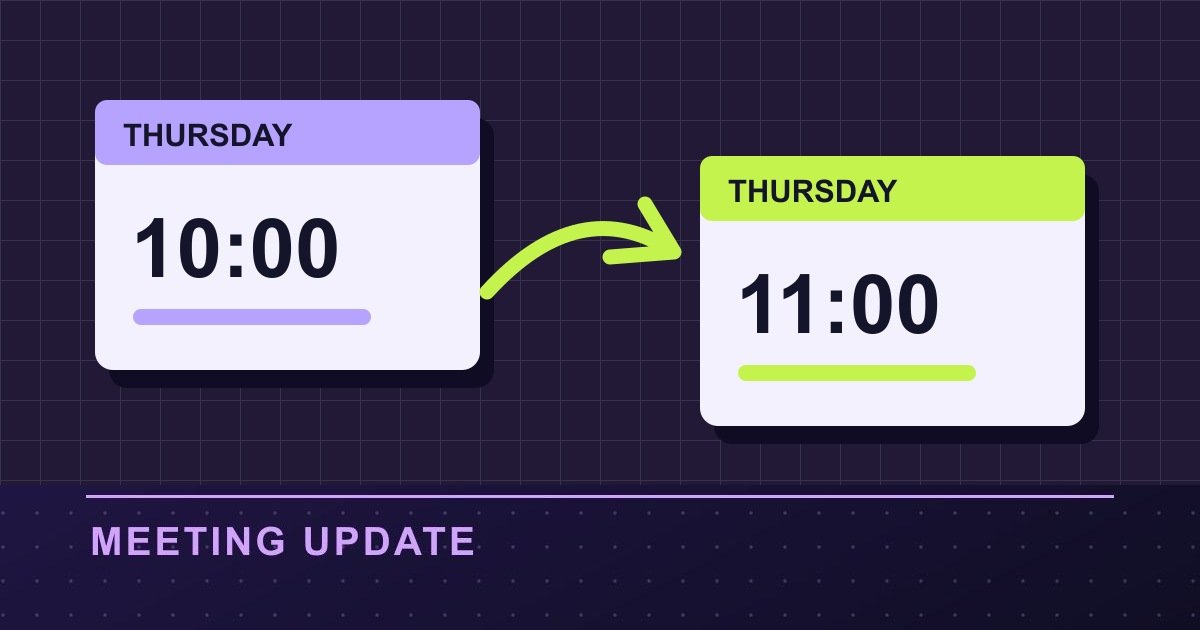
A client moves Thursday’s review from 10:00 to 11:00. The organiser sees the new time in Google Calendar. The account manager opens Outlook, sees 10:00, and joins an empty call. Both calendars showed the original appointment. What failed was the update.
That example illustrates the question I ask before changing anyone’s settings: how did the meeting get onto the second calendar? An invitation, an imported file, and a calendar subscription can put the same title on the same square. Each handles the next change differently.
Project overview
Lexie Kier, a CEO, engaged IT Support Bee for an Outlook-to-Google Calendar sync workshop. She wrote that the workshop “solved my complicated Microsoft / Google synching calendar nightmare.” That is her account of the outcome. Her review identifies the platforms and the workshop, but gives no configuration details or measured refresh time. The diagnostic procedure below is one you can use on your own accounts. Read Lexie Kier’s testimonial.
| Project detail | Published information |
|---|---|
| Business requirement | Resolve a scheduling problem spanning Microsoft and Google calendars |
| Engagement | Troubleshooting workshop |
| Result | Client reported that the scheduling issue was resolved |
| Practical question for another team | Who creates the meeting, who needs to see changes, and who must be able to edit it? |
1. Trace one meeting before reconnecting either account
Pick one appointment that went wrong. Ask the organiser and one affected colleague to open their calendars in a browser. This gives you a baseline before the desktop application, phone, or calendar overlay enters the investigation.
- On the organiser’s side, record the meeting title, organiser address, start time, and time zone. Check the guest list for the exact work address the colleague uses. A personal Google account and a company Google Workspace account can display the same name.
- On the colleague’s side, hide calendars one at a time. Record which calendar actually contains the event. If two copies appear, open each one and compare the organiser, guest address, and calendar name.
- Check the route. Ask whether the colleague accepted an invitation, uploaded an
.icsfile, subscribed to a calendar URL, or created a second appointment manually. Record the answer alongside the affected event. - Compare the web and desktop views. If Outlook on the web already shows 11:00 and only the desktop view shows 10:00, investigate the selected desktop account and calendar before making changes to the Google organiser’s setup.
Keep the original appointment intact while you investigate. A cancellation or edit on the organiser’s copy can reach real clients. A separate test meeting gives you room to reproduce the symptom without disrupting their diaries.
2. Match the connection to the job
A client needs reschedules and cancellations for their own meetings
Invite the client’s actual work address from the calendar that owns the appointment. Have the client respond from that account. When the time changes, edit the original event and send the update to the guests. Run the same test with a cancellation.
This matters for agencies whose staff use an internal calendar and also work inside a client tenant. If the client invites your agency address and you manually recreate the appointment in the client tenant, you now have two entries to maintain. Choose which address should receive future invitations and give that address to the organiser.
A manager needs a read-only view of another team’s schedule
A calendar subscription suits a team that wants to consult a schedule and can tolerate a delay. For an approved Google calendar feed, open Outlook on the web, choose Add calendar → Subscribe from web, enter the feed address, and give it a recognisable name such as Studio availability — Google. Keep its name distinct from the default calendar where staff create meetings.
Check whether your organisation allows this sharing method and what event details the feed exposes. Limit access to the information the recipient needs. Treat a private feed URL as a credential and keep it out of shared tickets and screenshots.
Microsoft says a subscribed calendar can take more than 24 hours to update. For a same-day room change or a customer call starting in twenty minutes, contact the attendees directly and update the original invitation. Microsoft’s calendar subscription guidance.
Operations needs a one-time copy for reference
An ICS import fits a different requirement. For example, an agency closing a project may want last quarter’s workshop dates in a reference calendar. Create a separate destination calendar, import the file once, and check dates and time zones before sharing it. Outlook treats the imported file as a snapshot. A later change at the source leaves that snapshot as it was. Microsoft’s guide to importing calendars.
If somebody has already imported hundreds of events into their main calendar, establish where the duplicates came from before deleting anything. Find one confirmed pair, identify the original organiser, and check whether deleting either item offers to notify attendees. That distinction matters more than clearing the screen quickly.
3. Test the changes that cost your business time
Use two controlled work accounts, one on each platform. Create a test event with an unmistakable title such as Calendar acceptance test – Thursday review. Write down what should happen before you press Send.
| Test | Action on the organiser’s calendar | What to verify on the receiving side |
|---|---|---|
| New invitation | Invite the other work account | The invitation reaches the expected address and the accepted event appears on the intended calendar |
| Reschedule | Move the original event by one hour and send the update | The recipient sees the new time and can identify any stale copy |
| Recurring meeting | Move one occurrence of a three-week series | The changed week moves and the other two stay at their original times |
| Cancellation | Cancel the test occurrence and notify the guest | The guest receives the cancellation and can distinguish the cancelled occurrence from the remaining series |
| Opposite direction | Repeat with the other platform as organiser | Each team can host the meetings it is responsible for |
Read the result before choosing a fix
- The invited colleague sees the update, but the manager’s overlay is stale. Check whether the manager relies on a subscribed feed. Record its observed delay. Agree where the team should look for urgent changes.
- Two copies appear and only one moves. Toggle the calendars individually. If one copy belongs to an old import, deal with that copy separately. Keep the invitation that carries the organiser’s updates.
- Everyone sees the same meeting at different clock times. Compare the displayed time zones and the actual instant of the meeting. A London organiser and a Dhaka guest should normally see different local times. For a recurring cross-border call, check a date after the next daylight-saving change as well.
- The recipient can see an event but cannot edit the organiser’s appointment. Clarify whether the job requires visibility, the ability to respond, or authority to change the shared schedule. If a deputy must edit meetings, configure an approved calendar-sharing or delegation arrangement and test with the deputy’s own account.
Handle the difficult case of one moved occurrence
A recurring client review normally falls on Wednesday. For one week the organiser moves it to Thursday. The following week stays on Wednesday. This small change reveals faults that a simple “can you see my calendar?” test will miss. An imported schedule may keep the old Wednesday entry. A colleague looking at two accounts may see both dates and assume somebody created a duplicate.
Trace the exception across both accounts
- Ask the organiser to open the changed week and the following week in their browser. Record the two expected dates, local start times and organiser address.
- Ask the guest to open the invitation addressed to their work account. Check which occurrence the update describes and whether the guest received it at the address used for the original series.
- On the guest’s calendar, show only the calendar associated with that account. If the extra entry disappears, re-enable the other calendars one at a time to identify the second copy.
- If the wrong occurrence remains, inspect how that copy was created. A separate local appointment needs a different remedy from a delayed subscription. Preserve the original organiser’s series while testing.
- Ask both people to check the following week. Fixing Thursday’s meeting at the cost of moving every future review is a regression the original test would have missed.
Agree how an assistant should manage the director’s diary
Visibility, authority to edit, and responsibility for invitations are separate requirements. A read-only subscription may be perfectly adequate for reception to see when a director is busy. It cannot satisfy an assistant who needs to reschedule client meetings on the director’s behalf. Write down which calendar owns those meetings and give the assistant the supported permissions on that system. Use each person’s own account so changes can be attributed and access can be removed when responsibilities change.
For the handover test, have the assistant reschedule a controlled meeting while the director watches the original calendar. Ask the external attendee which organiser appears on the update, whether the old time disappeared and whether their reply reaches the intended owner. If one step fails, keep the test event until support captures the account, timestamps and screenshots needed to reproduce it. A shared view that looks correct on the director’s screen is only one part of that workflow.
4. Hand the calendar back with a clear owner
Ask the person who books customer meetings to run the final test. Have them create a meeting, move it, and cancel it using their normal browser or desktop app. Ask their colleague to show where each change arrived. Save the account names, connection method, expected delay, and owner in the team’s support notes. Exclude private feed links and confidential event details.
The business result is concrete: the account manager knows which calendar to trust before joining the next customer call, and support knows where to look if an update goes missing.
Book a strategy call with IT Support Bee if your team depends on both Outlook and Google Calendar. Bring one affected meeting time, the two platforms involved, and what each person saw. I’ll help you trace the update and choose a setup your team can maintain. Email hello@itsupportbee.com or book your strategy call.

Mushfiqur Rahman
Microsoft 365 & Google Workspace Email Consultant
I help small businesses migrate, secure, and fix their business email. I specialize in Microsoft 365 and Google Workspace migrations, SPF, DKIM and DMARC, and remote admin support through IT Support Bee.