CEO Sophia Lux reported that IT Support Bee resolved her email delivery problem and checked the configuration of Google Workspace, HubSpot and Squarespace. The three products are the clearest detail in the account: investigating only the staff inbox would have left part of the customer’s setup out of scope.
The reported result
In Sophia Lux’s published testimonial, Lux says Mushfiqur diagnosed and fixed the delivery issue. She also reports a follow-up check after the initial work. For a business relying on email, that distinction matters: changing a setting and confirming that the business workflow works again are separate milestones.
The testimonial does not identify which product caused the failure. It provides no before-and-after headers, bounce code or inbox placement figures. It would be misleading to describe this as a proven SPF or DKIM failure, or to assign a percentage improvement.
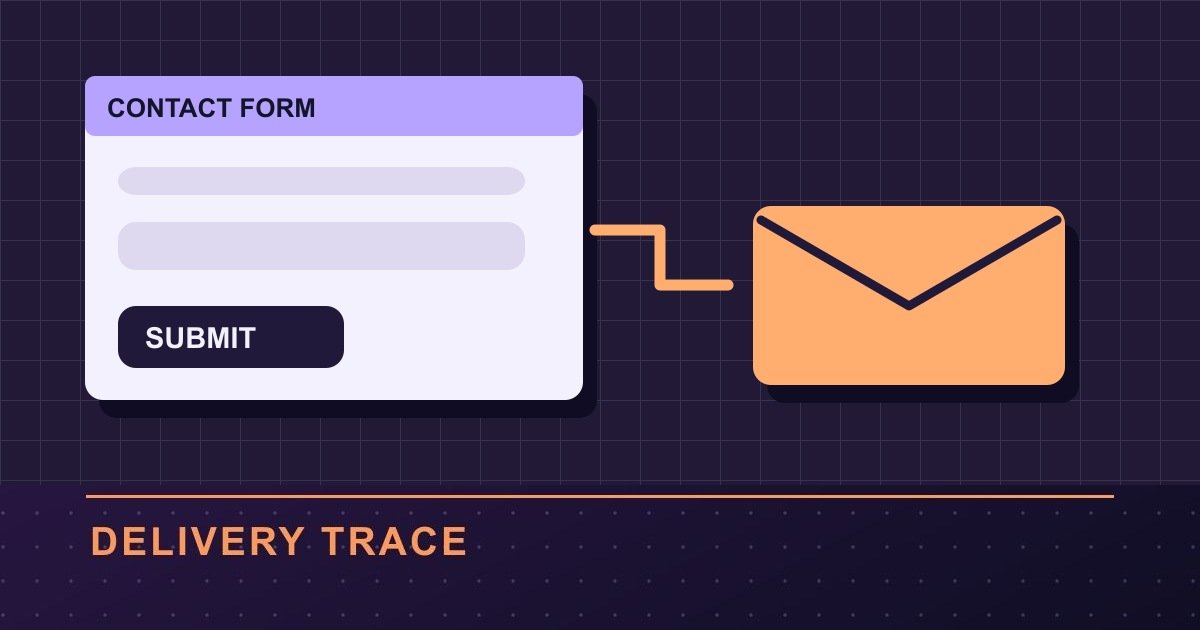
Follow a single enquiry from submit to reply
Imagine a prospective customer fills out a Squarespace form at 09:12. The sales team expects a contact in HubSpot, a notification in Google Workspace, and an acknowledgement in the customer’s inbox. “The form email never arrived” could describe three different failures. I would first ask the person who reported it to point to the exact missing item. A screenshot of an empty inbox tells us very little until we know which system was supposed to send that message.
Build a timeline with one recognisable test
- Use an approved external test address and submit the same public form the customer used. Put a unique reference such as
FORM-0912-Ain a permitted field. Record the time zone, page URL and expected recipient. - Check the form’s configured storage or submission destination. Locate the test entry if the setup retains submissions. Seeing a thank-you page alone leaves the storage and notification steps unverified.
- Open the matching CRM contact. Check whether this submission created it or updated an existing contact. A record created six months ago can make a broken integration look healthy. Look for a new event or a changed property at the test time.
- Identify the system responsible for each outgoing message. The site may generate the staff notification while the CRM generates the acknowledgement. Collect a separate timestamp, recipient and sending result for each.
- In Google Workspace, use Email Log Search for the narrow test window and recipient. A message ID improves the search when available. If nothing matches, verify the address and time zone, then work back to the sending application. A missing log entry alone cannot tell you which upstream service failed. Google Workspace Email Log Search
| Last confirmed event | First missing event | Next check |
|---|---|---|
| Form entry stored | CRM activity | Check the destination account, form mapping and connection status |
| CRM activity present | Acknowledgement generated | Check the trigger, eligibility and exclusions for this contact |
| Sender reports an accepted handoff | Staff cannot find mail | Inspect recipient logs, group routing and the final mailbox |
| Notification arrived | Staff reply goes to the wrong person | Inspect the notification’s Reply-To address and test a reply |
A fix that creates a second problem
Suppose the staff notification arrives after you replace an old recipient address. Sales confirms receipt. Before you close the ticket, ask someone in sales to click Reply. If the reply is addressed to a website notification service, the lead still cannot hear back. Put a controlled address in the original form and follow the reply all the way back to it. Keep the From identity under the sending system’s control and configure Reply-To according to the form provider’s supported settings.
Repeat the test once with a new contact and once with an existing test contact. If a workflow is designed to run only on first enrolment, the different outcome may be exactly what the business configured. Write that expectation in the handover so the next person knows which behaviour needs investigation.
What I would keep with the support ticket
A short event trail is more useful than screenshots of six settings pages. Keep the test reference, each system’s timestamp, the expected recipient, the observed outcome and the business owner who confirmed the reply. Remove personal details before sending the ticket outside the team. This gives support a reproducible check for the next form redesign or CRM change.
How to verify a similar repair
Consider a customer enquiry that starts on a website. There may be several different messages to test: a staff notification, an acknowledgement to the customer and a later CRM follow-up. Even when all three display the same business name, a successful staff reply says little about whether the other messages arrived.
For your own acceptance test, submit a uniquely labelled enquiry from a controlled external address. Record which notifications you expect and who should receive each one. Compare the application’s event history with what reached each mailbox. If a message is missing, preserve the timestamp and message ID so support can investigate the specific step. This is a suggested test for a similar setup; the client did not publish her original test procedure.
For a diagnostic worksheet, use the email spam troubleshooting guide. If you need someone to trace a failing message across providers, see email deliverability support.
To trace one missing enquiry across your website, CRM and mailbox, email hello@itsupportbee.com or book a strategy call with IT Support Bee.

Mushfiqur Rahman
Microsoft 365 & Google Workspace Email Consultant
I help small businesses migrate, secure, and fix their business email. I specialize in Microsoft 365 and Google Workspace migrations, SPF, DKIM and DMARC, and remote admin support through IT Support Bee.