
Fix HTML Email Signature Issues
Your email signature is often the first impression a client gets of your business. So when Outlook suddenly breaks your carefully designed HTML signature — distorting fonts, resizing images, or stripping formatting entirely — it’s more than just a technical annoyance. It’s a branding problem. Fix HTML Email Signature Issues in Outlook & Google Workspace
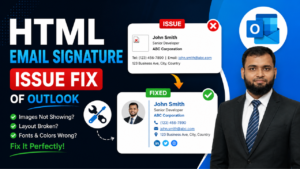
At ITSupportBee, we help businesses across the US fix exactly these kinds of Microsoft 365 issues every day. In this guide, we’ll walk you through the most common HTML email signature problems in Outlook and how to fix them — fast.
Why Does Outlook Break HTML Email Signatures?
Outlook is notorious for its limited HTML and CSS rendering engine. Unlike modern web browsers, Outlook (especially desktop versions) uses Microsoft Word’s rendering engine — which doesn’t support many standard HTML and CSS properties.
Since 2023, the New Outlook for Windows has introduced additional rendering changes that have broken signatures for thousands of businesses. Common complaints include:
- Fonts changing or defaulting to Calibri
- Images enlarging or distorting when forwarding or replying
- Signature appearing as raw HTML code instead of formatted content
- Double signatures appearing in email threads
- Signatures not syncing between Outlook Desktop and Outlook Web App (OWA)
Fix #1: Set Outlook to Compose in HTML Format
One of the most overlooked causes of broken signatures is Outlook composing emails in Plain Text or Rich Text format instead of HTML.
How to fix it:
- Open Outlook and go to File > Options > Mail
- Under Compose messages, set the format to HTML
- Click OK and restart Outlook
When replying to an email, you can also go to the Format Text tab in the ribbon and manually select HTML.
Fix #2: Don’t Copy-Paste — Drag and Drop Your HTML Signature
In the New Outlook for Windows, copy-pasting an HTML signature destroys the formatting. This is a known bug — Outlook’s signature editor doesn’t support “keep source formatting” when pasting.
The workaround:
Instead of copying and pasting your HTML signature file, drag and drop the .htm file directly into the Outlook signature editor. This preserves fonts, colors, image sizes, and layout.
Fix #3: Disable Roaming Signatures (If Signatures Go Missing)
Microsoft introduced “roaming signatures” to sync signatures across devices. However, this feature has caused signatures to go missing or override local signatures for many users.
How to disable it:
- Go to File > Options > Mail > Signatures
- Uncheck the Roaming Signatures option
- Restart Outlook
Your locally stored signatures should reappear. If not, they can be recovered from: C:\Users\[YourName]\AppData\Roaming\Microsoft\Signatures
Fix #4: Use Inline CSS Only (No External Stylesheets)
Outlook does not support external CSS files or <style> blocks in the <head> of your HTML signature. All styling must be written as inline CSS directly on each element.
Wrong:
<style> p { font-family: Arial; } </style>
Right:
<p style="font-family: Arial, sans-serif; font-size: 14px;">John Smith</p>
Also, always use web-safe fonts (Arial, Georgia, Verdana, Times New Roman). Custom Google Fonts will not render in Outlook.
Fix #5: Use Tables for Layout (Not Divs or Flexbox)
Outlook ignores CSS layout properties like flexbox, grid, and even float. The only reliable way to create a multi-column signature layout in Outlook is with HTML tables.
<table cellpadding="0" cellspacing="0" border="0">
  <tr>
    <td style="padding-right: 15px;">
      <img src="logo.png" width="80" height="80" />
    </td>
    <td>
      <p style="font-family: Arial; font-size: 14px; font-weight: bold;">Jane Doe</p>
      <p style="font-family: Arial; font-size: 12px;">Senior Account Manager</p>
    </td>
  </tr>
</table>
Avoid border-radius, box-shadow, or CSS gradients — Outlook will ignore them entirely.
Fix #6: Host Signature Images Externally
Embedded images (base64 or local file paths) frequently break in Outlook, especially when emails are forwarded or received externally. The most reliable approach is to host your logo and images on a public URL (your website, CDN, or Microsoft SharePoint) and reference them with an absolute URL.
<img src="https://yourdomain.com/email-signature-logo.png" width="150" height="50" />
Always set explicit width and height attributes in pixels to prevent Outlook from resizing your images.
Fix #7: Fix Signature Sync Issues Between Outlook Desktop and OWA
If your signature appears correctly in Outlook Desktop but not in Outlook Web App (OWA) — or vice versa — it’s likely a sync issue introduced in late 2024.
Microsoft released a fix in Version 2410 (Build 18129.20124) and later builds. To resolve this:
- Go to File > Office Account > Update Options > Update Now
- Ensure your Outlook is on the Current Channel or Monthly Enterprise Channel (November 2024 update or later)
- After updating, go to File > Options > Mail > Signatures and re-save your signature
Fix #8: Fix Signature Enlarging When Forwarding or Replying
This is one of the most frustrating Outlook bugs reported in 2024. The HTML signature renders correctly on a new email but becomes oversized when someone replies or forwards.
Root cause: Image DPI settings and missing explicit dimensions.
Fix:
- Ensure all images are saved at 96 DPI
- Always define explicit
widthandheightin your<img>tags - Avoid using
max-widthorwidth: 100%— Outlook ignores responsive CSS
Still Struggling? Let ITSupportBee Handle It.
HTML email signatures in Outlook involve more quirks than most people expect. Between Microsoft’s limited HTML rendering engine, the New Outlook rollout, and ongoing sync bugs, getting a signature that looks right across all devices and clients takes real expertise.
At ITSupportBee, we:
- Set up and troubleshoot Microsoft 365 email configurations for businesses across the US
- Create and deploy professional HTML email signatures company-wide via Exchange Admin Center
- Configure SPF, DKIM, and DMARC to keep your emails out of spam folders
- Provide ongoing managed IT support so issues like this never slow your team down
Whether you’re a team of 5 or 500, we provide the same expert-level Microsoft 365 support — remotely, reliably, and fast.
👉 Get in touch at itsupportbee.com and let’s fix your email signature today.
ITSupportBee is a remote IT support company specializing in Microsoft 365, Google Workspace, cloud migration, and email deliverability. With 12+ years of experience, we help US businesses stay secure, productive, and running smoothly.