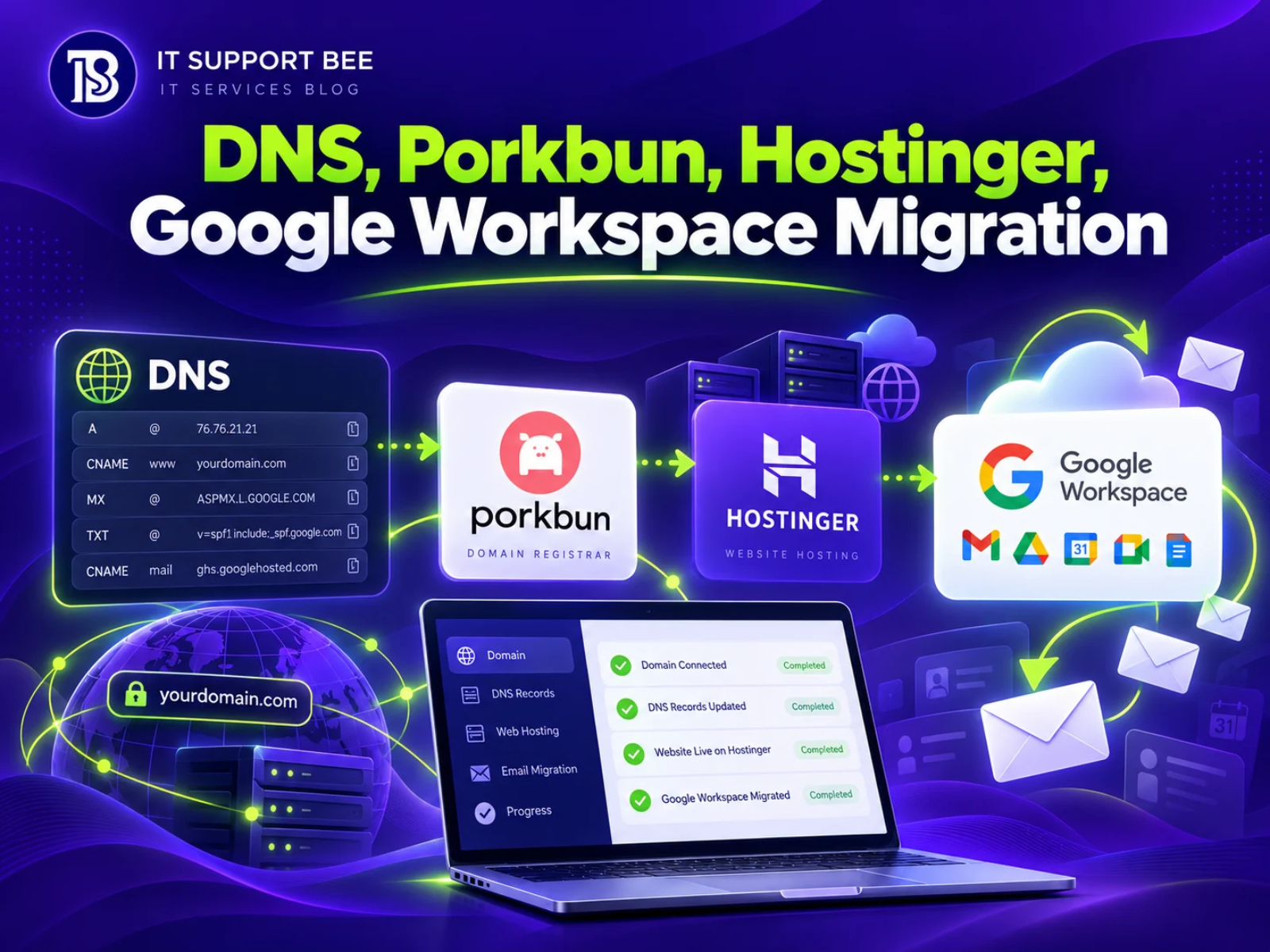
Managing business emails across multiple domains can become complicated, especially when several addresses need to deliver messages to the same person while maintaining separate business identities.
In this project, I helped a US-based photography and creative services business transition from InMotion Hosting email to Google Workspace. The work involved more than migrating historical messages. The client also needed centralized email management, multiple domain configurations, Gmail labels, email aliases, shared email access, and preservation of legacy mailboxes.
As a Remote IT Support Specialist and Google Workspace Administrator, my responsibility was to design a practical email infrastructure that reduced mailbox fragmentation, protected existing email history, and supported the client’s day-to-day workflow.
This case study explains the project’s challenges, technical architecture, migration approach, and lessons that other businesses can apply when planning a Google Workspace email migration.
Client information and email addresses have been anonymized to protect confidentiality. Example addresses and domains are used throughout this article.
Project Overview
| Project Detail | Description |
|---|---|
| Industry | Photography and Creative Services |
| Client Location | United States |
| Source Email Hosting | InMotion Hosting (cPanel/IMAP) |
| Destination | Google Workspace |
| Domain Registrar | Porkbun |
| Website Hosting | Hostinger |
| Email Migration Method | Google Workspace IMAP Data Migration |
| Email Organization | Gmail Labels, Aliases, Filters and Google Groups |
| Additional Requirements | DNS Configuration, Historical Email Preservation and Mail Routing |
Project Objectives
The client wanted to achieve several business and technical goals:
- Migrate historical business email messages from InMotion Hosting to Google Workspace.
- Manage email addresses belonging to multiple domains through a centralized Gmail account.
- Organize incoming messages according to their original business email addresses.
- Maintain separate business identities when sending and receiving emails.
- Configure a shared
hello@address for multiple team members. - Preserve messages from discontinued or archive-only email addresses.
- Keep the business website and email hosting independently manageable.
- Minimize disruption to incoming and outgoing email during the transition.
The central requirement was straightforward: one organized email environment without losing the separation between different brands and addresses.
The Challenge: Multiple Domains and Fragmented Email Management
The business operated several brands and domain names, each associated with different email addresses.
Some addresses were actively used for client communications, while others contained important historical conversations that needed to remain accessible.
The existing setup created several challenges.
1. Multiple Business Addresses Across Different Domains
The client needed to receive and manage messages from addresses similar to:
owner@example.comoffice@example.comhello@studio.examplecontact@creative.exampleowner@visual.example
The original mailboxes were hosted on a traditional cPanel email server.
Creating an independent Google Workspace user for every address would increase licensing requirements and make daily email management unnecessarily complicated.
Instead, the solution needed to distinguish between users, aliases, and shared email addresses.
2. Historical Emails Needed to Be Preserved
The existing email accounts contained business communication that could not simply be abandoned after switching providers.
These included:
- Client correspondence
- Project discussions
- Previous inquiries
- Sent messages
- Historical records from older business brands
- Custom IMAP folders
The migration therefore required careful source-to-destination mailbox mapping and post-migration verification.
3. Website Hosting and Email Hosting Were Separate
The client’s website was being moved to Hostinger while email was still hosted on InMotion Hosting.
The domain was registered through Porkbun.
This introduced an important DNS consideration: changing nameservers or website hosting does not automatically migrate email services.
If the existing mail-related DNS records are not preserved when nameservers change, incoming email delivery and IMAP connectivity can fail.
The infrastructure needed to support the old email server during migration and Google Workspace after the final email cutover.
4. Different Addresses Required Different Delivery Behavior
Not every address needed the same configuration.
Some emails needed to arrive in one person’s mailbox with dedicated labels. Others required shared access by multiple team members.
Legacy addresses only needed historical message preservation.
This meant the project needed a combination of:
- Google Workspace users
- Email aliases
- Google Groups
- Gmail filters and labels
- IMAP mailbox consolidation
- Archive organization
The Solution: A Centralized Google Workspace Email Architecture
I designed the migration around a primary Google Workspace mailbox, supported by additional business addresses and a team-based email workflow.
The objective was to reduce unnecessary account complexity while preserving each brand’s email identity.
Primary User and Multi-Address Management
A primary Google Workspace user served as the central destination for multiple business email addresses.
An illustrative architecture looks like this:
GOOGLE WORKSPACE
│
├── PRIMARY USER
│   └── owner@example.com
│       │
│       ├── Main Inbox
│       ├── Label: office@example.com
│       ├── Label: owner@studio.example
│       ├── Label: hello@studio.example
│       ├── Label: contact@creative.example
│       └── Label: owner@visual.example
│
├── TEAM EMAIL
│   └── hello@example.com
│       └── Google Group
│           ├── Owner
│           └── Team Member
│
└── HISTORICAL EMAIL PRESERVATION
    ├── office@visual.example
    └── archive@visual.example
This is a simplified representation of the intended email architecture, not a literal list of separate Gmail folders or licensed accounts.
Google Workspace Users vs. Aliases vs. Groups
Choosing the correct address type is essential when consolidating multiple business domains.
| Feature | Google Workspace User | Email Alias | Google Group |
|---|---|---|---|
| Separate account login | Yes | No | No separate Gmail login |
| Independent Gmail mailbox | Yes | No | No; Group conversations are separate |
| Receives email | Yes | Yes | Yes |
| Multiple recipients | Requires routing or delegation | One owning user | Supported |
| Dedicated user license | Generally required | No additional license | No additional user license for the Group itself |
| Best use case | Individual employee | Additional business identity | Team-based communication |
For this project, the key architectural principle was to use separate user accounts only when independent mailbox access was necessary.
Aliases were appropriate for additional addresses managed by the same person. Google Groups were suitable for addresses requiring distribution or collaborative handling.
An important limitation is that an address cannot simultaneously belong to a user, an alias, and a Google Group. The intended ownership and delivery behavior must be decided before configuration.
Step 1: Auditing the Existing Email Infrastructure
Before starting the migration, I reviewed the existing email and DNS environment.
Email Infrastructure Assessment
The audit focused on:
- Identifying the source email hosting provider.
- Reviewing existing IMAP accounts and their destination requirements.
- Checking historical email storage and folder organization.
- Identifying active addresses and archive-only accounts.
- Reviewing the domain registrar and authoritative DNS provider.
- Verifying how email was currently delivered and authenticated.
For the InMotion Hosting environment, the source mailboxes used secure IMAP connectivity.
Typical configuration:
Protocol: IMAP
Port: 993
Encryption: SSL/TLS

Username: Full email address
Password: Source mailbox password
The IMAP hostname was verified against the actual cPanel email configuration rather than assumed.
This was especially important because the website and email infrastructure were hosted separately.
Understanding DNS Dependencies
A domain can use one provider for registration, another for website hosting, and a third for email.
For example:
Domain Registration
        │
        └── Porkbun
               │
               ▼
        Authoritative DNS
               │
               └── Hostinger
                    │
                    ├── Website → Hostinger
                    │
                    └── Email → Google Workspace
The important distinction is that DNS determines where traffic is directed; it does not move existing mailbox data.
Step 2: Preparing DNS Without Interrupting Email
One of the most important parts of the project was managing DNS during the transition.
When authoritative nameservers change, the new DNS provider must contain the records required by any services that remain active.
Keeping the Legacy Email Server Accessible
During the migration, the original InMotion email server still needed to be reachable.
This required verifying that:
- The legacy mail hostname resolved correctly.
- The existing mail service remained accessible over IMAP.
- Incoming email continued reaching the intended mail provider.
- Existing authentication records remained appropriate while the legacy system was still sending email.
For example:
mail.example.com
        ↓
Legacy InMotion mail server
        ↓
IMAP over SSL/TLS: 993
The actual legacy server IP and DNS records were retained privately for implementation.
Planning the MX Record Cutover
The final Google Workspace MX configuration uses Google’s current recommended destination:
Type: MX
Host: @
Priority: 1
Value: smtp.google.com
However, the critical rule is:
Do not change MX records to Google Workspace before the destination mailboxes and routing configuration are ready to receive production email.
The existing mail host can remain active for historical IMAP access after the MX cutover, provided the account and server remain available.
Simply publishing both the old hosting provider’s MX and Google’s MX records is not a reliable way to enable dual delivery. Genuine split or dual delivery requires explicit mail routing configuration.
Step 3: Migrating IMAP Emails to Google Workspace
For the email migration, I used Google Workspace’s Data Migration Service to import historical messages from the existing IMAP mailboxes.
This approach allowed the source email accounts to be mapped to Google Workspace destination users.
Source-to-Destination Mailbox Mapping
A major requirement was consolidating more than one legacy mailbox into a primary Google Workspace account.
For example:
| Source IMAP Mailbox | Google Workspace Destination |
|---|---|
owner@visual.example |
owner@example.com |
office@visual.example |
owner@example.com |
owner@example.com |
owner@example.com |
Google Workspace migration mappings refer to the destination user account, not necessarily the alias associated with the historical source address.
That distinction matters because importing a source mailbox into the correct user does not automatically mean every message will receive a label named after that source mailbox.
Migration Procedure
The technical process involved:
- Opening the Google Workspace Admin Console.
- Accessing the email Data Migration Service.
- Selecting the supported IMAP migration source.
- Configuring the source server connection and secure authentication.
- Entering source mailbox credentials.
- Mapping the source accounts to the intended Google Workspace user.
- Reviewing migration options, including excluded folders.
- Running the migration and monitoring its progress.
- Reviewing mailbox contents and migration results.
Where appropriate, source folders such as Trash and Spam/Junk were excluded from the migration scope.
Exclusions require checking the exact folder names used by the legacy IMAP server.
Preserving Sent Emails and Historical Folders
A traditional IMAP server commonly organizes messages into folders such as:
INBOX
Sent
Drafts
Trash
Archive
Custom Folders
Gmail uses a label-based model rather than conventional folders.
This difference creates an important migration consideration: an imported custom folder such as INBOX.Sent is not necessarily equivalent to Gmail’s native Sent system label.
Post-migration verification therefore needs to inspect both the message content and the destination label structure.
For this project, historical mailbox organization was a significant part of the migration work, not simply the successful transfer of messages.
Step 4: Organizing Multiple Email Addresses With Gmail Labels
After consolidating historical messages, the next requirement was improving everyday mailbox organization.
The client wanted emails associated with different brands to remain distinguishable within the primary Gmail account.
Configuring Gmail Filters
Gmail filters can match the recipient address and apply a corresponding label.
For example, mail sent to:
office@example.comcan be associated with the label:
Office - Main BusinessA typical Gmail filter uses:
To: office@example.comWith the following actions:
- Apply the corresponding label.
- Optionally skip the Inbox for addresses that should be archived automatically.
- Preserve the message in Gmail for future searching.
The configuration path is:
Gmail → Settings → See all settings → Filters and Blocked Addresses → Create a new filter
Handling Historical Emails Differently
There is an important technical distinction between new incoming mail and imported historical messages.
For newly delivered messages, Gmail filters can use the recipient address when it is present in the searchable message headers.
For historical messages imported from separate IMAP accounts, the original address may not always be represented consistently in the To: header.
This is particularly relevant to:
- BCC messages
- Forwarded emails
- Messages delivered through alternative envelope recipients
- Mail imported from separate accounts into a single destination
Therefore, mailbox consolidation and historical label organization should be treated as separate migration tasks.
Where necessary, historical messages must be identified, tested, and labeled using a verified migration or post-migration workflow rather than assuming that aliases automatically classify imported messages.
Step 5: Configuring Google Workspace Email Aliases
An email alias allows a single user to receive messages addressed to additional email identities without maintaining a separate mailbox.
For example:
owner@example.com
       │
       ├── office@example.com
       ├── owner@studio.example
       └── contact@creative.example
All of these addresses can deliver to the primary user’s Gmail account once the relevant domains and aliases are properly configured.
Benefits of Email Aliases
For a business managing several brands, aliases offer practical advantages:
- Fewer separately managed mailbox accounts.
- Reduced licensing requirements where additional users are unnecessary.
- Centralized message access.
- Multiple professional sender identities.
- Simpler account administration.
Google Workspace supports up to 30 alternate email aliases per user, subject to the applicable alias and domain configuration rules.
Sending Email From an Alias
Receiving email through an alias is only one part of the requirement.
Users may also need to reply using the correct business address.
For example, when a client sends an inquiry to:
contact@creative.examplethe user should be able to respond using:
From: contact@creative.examplerather than exposing their primary address.
This is configured through Gmail’s Send mail as settings and the available From-address selector.
An alias does not provide an independent mailbox, password, or login. If separate access is required, a different account architecture is necessary.
Step 6: Setting Up a Google Group for Shared Email
The project also involved a business address intended for more than one recipient.
A typical example is:
hello@example.comWhen multiple people need to receive and manage this address, a Google Group can be more appropriate than a single-user alias.
Shared Email Workflow
Customer
   │
   ▼
hello@example.com
   │
   ▼
Google Group
   │
   ├── Primary User
   │
   └── Team Member
Google Groups can distribute incoming messages to members, while a Collaborative Inbox configuration can support shared conversation handling and assignment where enabled.
However, a Google Group is not identical to an Exchange shared mailbox or a separately logged-in Gmail account.
The correct design depends on whether the team needs message distribution, shared conversation tracking, or full mailbox-style workflows.
Step 7: Reviewing Email Routing and Spam Compliance Rules
A further technical challenge involved Google Workspace email compliance rules and their interaction with Google Groups.
The client had implemented more aggressive filtering for selected legacy-domain addresses.
During testing, some messages associated with the shared hello@ Group were being quarantined unexpectedly.
This exposed an important consideration in multi-domain Google Workspace setups.
Why Recipient-Based Compliance Rules Need Careful Testing
Google Workspace processes incoming mail through several layers, including:
- Gmail spam and phishing protection
- Content compliance rules
- Routing rules
- Google Groups delivery
- Recipient and envelope processing
The visible To: address in an email is not always equivalent to the SMTP envelope recipient used during delivery.
Consequently, rules using conditions such as Any envelope recipient may behave differently from filters that inspect the message’s visible recipient header.
Troubleshooting Approach
The appropriate remediation process was to:
- Review the existing Gmail Content Compliance rule.
- Identify the intended legacy addresses and matching expressions.
- Inspect Email Log Search entries for legitimate messages that were quarantined.
- Compare those entries with messages correctly matched by the rule.
- Check recipient, envelope and forwarding information.
- Narrow the rule’s scope where required.
- Validate delivery to both Google Group members.
- Confirm the legacy-domain filtering policy continues to behave as intended.
The lesson: Never loosen security rules globally just to resolve an isolated routing problem.
The goal should be to preserve the intended security controls while correcting their application to unrelated messages.
This was an additional configuration issue identified during the client’s hands-on testing; it should be treated as a validation and refinement task, not evidence that every security rule had already been fully resolved.
Step 8: Configuring SPF, DKIM and DMARC
A Google Workspace migration should include domain authentication, not merely changing MX records.
Three standards are particularly important.
SPF — Sender Policy Framework
SPF identifies the email services authorized to send messages for a domain.
For a domain sending exclusively through Google Workspace, an SPF record can look like:
v=spf1 include:_spf.google.com ~allIf other legitimate services also send email for the domain, their required SPF mechanisms must be incorporated into the same SPF record.
A domain should not publish multiple separate SPF records.
DKIM — DomainKeys Identified Mail
DKIM uses a cryptographic signature to help recipients verify that an email was authorized and has not been altered in transit.
For Google Workspace, the administrator generates a DKIM key and publishes the corresponding DNS TXT record.
A common selector format is:
google._domainkey.example.comThe actual public key must be generated for the domain.
After DNS publication, DKIM signing is enabled in the Google Workspace Admin Console.
DMARC — Domain-based Message Authentication, Reporting and Conformance
DMARC builds on SPF and DKIM by checking domain alignment and specifying how receiving systems should handle authentication failures.
A monitoring-stage example is:
Host: _dmarc
Type: TXT
Value: v=DMARC1; p=none; rua=mailto:dmarc@example.com
The reporting mailbox must exist or be configured with a functioning DMARC reporting provider.
For production environments, DMARC enforcement should be strengthened based on verified sending sources and authentication reports.
Policies such as p=quarantine and p=reject should not be introduced blindly, particularly while legacy or third-party sending services remain active.
Step 9: Testing and Post-Migration Verification
A migration should not be considered successful solely because the migration tool reports completion.
The final validation process needs to verify functionality from the user’s perspective.
Email Migration Checklist
- Confirm each required source mailbox has been reviewed.
- Compare migration results and source mailbox contents.
- Verify historical Inbox and Sent messages.
- Confirm important custom folders and labels are accessible.
- Review archived historical messages.
- Check for missing or unexpectedly duplicated mail.
- Confirm excluded folders match the intended migration scope.
Mail Flow Checklist
- Send an external test message to the primary mailbox.
- Test each configured alias.
- Confirm Gmail labels apply to new messages.
- Test sending from alternate addresses.
- Verify Google Group delivery to all intended members.
- Check Email Log Search for quarantined or rejected messages.
- Confirm website DNS and mail DNS remain correct.
- Validate SPF, DKIM and DMARC authentication.
Why Delta Migration Matters
Email migration and DNS cutover are not always completed at the same moment.
New messages may reach the original server while historical mail is still being copied.
A final incremental or delta migration, where supported by the selected migration workflow, helps capture additional source messages created during the transition period.
This reduces the risk of missing late-arriving mail.
A low-disruption migration requires a deliberate cutover, retained source access, and post-cutover verification. Zero downtime should be an implementation objective, not an unverified guarantee.
Project Outcome and Business Value
The project established a Google Workspace-based approach to managing a multi-domain business email environment.
The migration and configuration work covered historical IMAP messages, centralized mailbox organization, business email aliases, Google Groups, DNS management, and the handling of legacy addresses.
The key business benefits of this architecture are:
Centralized Email Administration
A primary Google Workspace mailbox can manage multiple business identities without requiring users to switch constantly between unrelated inboxes.
More Practical Use of Licenses
Using aliases and Groups where appropriate avoids creating separate paid user accounts for addresses that do not need independent logins.
Improved Business Email Organization
Dedicated labels and filtering rules help users distinguish communications associated with different brands and business functions.
Historical Email Continuity
Preserving legacy mail allows the business to reference past customer conversations after transitioning away from its previous hosting provider.
More Maintainable Infrastructure
Separating website hosting, authoritative DNS and business email services provides greater flexibility for future hosting changes.
Better Visibility Into Mail Delivery
Google Workspace administration tools, including Email Log Search and routing configuration, support more structured troubleshooting of delivery and quarantine problems.
The project also demonstrated that mailbox migration, Gmail label design and mail security configuration require separate validation. A successful message import does not automatically guarantee that every historical folder or routing rule behaves as intended.
Key Lessons From This Google Workspace Migration
For business owners and IT administrators planning a similar project, these are the most important takeaways:
- Inventory every address before migration. Identify which addresses need independent users, aliases, Groups, or historical preservation only.
- Design the destination before copying data. Consolidating accounts without a labeling strategy can create a difficult-to-manage mailbox.
- Separate email routing from historical migration. MX records control new mail delivery; IMAP migration copies existing messages.
- Preserve legacy server access until verification is complete. Historical email may still need to be checked after DNS cutover.
- Do not assume old IMAP folders map perfectly to Gmail labels. Pay particular attention to Sent folders and custom folder structures.
- Test Google Groups alongside compliance rules. A rule that works for a direct recipient can behave differently during group distribution.
- Validate email authentication before enforcing strict DMARC policies. Legitimate sending systems must be accounted for.
Frequently Asked Questions
Can I migrate email from InMotion Hosting to Google Workspace?
Yes. InMotion Hosting email accounts that support IMAP can be migrated to Google Workspace using a compatible migration tool, including Google’s supported IMAP migration service. The source server must be accessible and the necessary mailbox credentials must be available.
Can multiple email addresses use one Google Workspace inbox?
Yes. Google Workspace email aliases allow one user to receive messages sent to additional addresses, including addresses on other verified domains in the Workspace environment. These messages arrive in the user’s primary Gmail mailbox.
Can I migrate multiple IMAP mailboxes into one Gmail account?
A supported migration workflow can map separate source mailboxes to the same destination Google Workspace user. However, historical message labeling and source-folder organization require separate planning and validation.
Will Gmail automatically create labels for migrated email aliases?
No. Adding an alias does not automatically label historical messages imported from another IMAP mailbox. Existing source folders may be migrated as labels, but mailbox-specific labels and filters must be configured and validated separately.
Can I reply using a different business email address?
Yes. A Google Workspace user can configure Gmail to send from an authorized alias address. This allows the user to maintain the correct brand identity when communicating with customers.
What is the difference between a Google Workspace alias and a Google Group?
An alias delivers email to one user’s existing mailbox. A Google Group can distribute messages to multiple members and, when configured for collaborative handling, support team-based conversation management. Neither is a substitute for an independent user mailbox when a separate login is required.
Can I migrate email without changing my website hosting?
Yes. Website hosting and email hosting can operate through different providers. The essential requirement is to configure the relevant DNS records correctly, including website records, MX records and email authentication records.
How can I avoid email downtime during migration?
Prepare Google Workspace in advance, verify the destination accounts and DNS configuration, migrate historical mail while the old service remains accessible, and perform a controlled MX cutover. Complete the process with mail flow testing and a final incremental migration when supported.
Conclusion
This project demonstrates that a Google Workspace email migration is not simply about transferring messages from one server to another.
For a multi-domain business, the real value comes from designing an email environment that supports existing workflows, maintains historical records, reduces unnecessary mailbox complexity, and provides reliable administration.
By combining IMAP migration, Google Workspace aliases, Gmail labels, Google Groups, DNS management and email authentication, businesses can establish a more organized and scalable email infrastructure.
The most important part of any migration is careful planning: every mailbox, alias, domain and routing decision should have a clearly defined purpose.
Need Help Migrating to Google Workspace?
Are you managing multiple business email accounts across different providers, dealing with confusing DNS settings, or planning to move from cPanel, InMotion Hosting, Zoho Mail or Microsoft 365 to Google Workspace?
At IT Support Bee, I help businesses plan and implement cloud email migrations, resolve email delivery problems, configure Google Workspace and Microsoft 365, and maintain secure, manageable IT environments.
Let’s build an email infrastructure that supports your business instead of slowing it down.
- Email: hello@itsupportbee.com
- Book a consultation: itsupportbee.com/contact
IT Support Bee — Reliable Remote IT Support Without the Overhead.

Mushfiqur Rahman
Cloud Administrator & IT Support Engineer
Helping businesses set up, migrate, and manage reliable email systems. Specializing in Google Workspace, Microsoft 365, email deliverability, and remote IT support at IT Support Bee.